Windows 8 Build 8102.101.winmain_win8m3.110830-1739
| Windows 8 的版本 | |
 默认桌面 | |
 禁用 Redpill 的桌面 | |
| 发布名称 | Developer Preview |
|---|---|
| 操作系统系列 | Windows NT 系列 |
| NT 版本 | Windows NT 6.2 |
| 内部版本号 | 8102 |
| 修订版本号 | 101 |
| 体系结构 | x86、x64 |
| 内部版本实验室 | winmain_win8m3 |
| 编译日期 | 2011 年 8 月 30 日 |
| 有效期 | |
| 时间炸弹 | 2012 年 3 月 11 日 (+194 天) |
| 已知 SKU 版本 | |
Developer Preview(Prerelease)、预安装环境 | |
| 产品密钥 | |
| 6RH4V-HNTWC-JQKG8-RFR3R-36498 | |
| 关于对话框 | |
 | |
Windows 8 Build 8102.101 是 Windows 8 的官方 Developer Preview 和 Milestone 3 版本,于 2011 年 9 月 13 日发布,这是 Microsoft Build 2011 大会的首日。[1][2]大会的与会者收到了三星制造的一款基于 x64 的平板电脑,此平板电脑预装了此版本。
此版本官方发布了三种版本,特别是包括一个预装了开发者工具的 x64 版本,此外还有常规的 x86 和 x64 编译版本。由于 Metro 用户界面的许多特定区域资源直接硬编码在 Redpill 组件中,因此此版本仅提供英语(美国)本地化版本,因此不会受到本地化的影响。一个简体中文语言包后来由中文网站 cnBeta 泄露,于 2011 年 9 月 20 日共享,恰好在此版本公开发布后一周。[3]
值得注意的是,这也是唯一一个通过官方解锁程序开箱即可解锁 Redpill 功能集的可用版本,因此默认启用了完整的 Windows 8 用户界面。它还是首个预装完整 Metro 应用集的可用版本,尽管所包含的应用集大多只是示例应用,主要用于展示此平台的各种功能。
Redpill
这是 Windows 8 的首个可以开箱即用地使用所有新的 Metro 功能的公开发布版本。虽然 Microsoft 分发的映像已启用新的外壳,但它仍然使用与早期版本中通过 Redpill 解锁 Metro 功能相同的内部机制。在此版本中,Redpill 应用的遗留部分以 Windows\System32 目录中的 redpill.log 文件形式存在,为官方 Redpill 解锁程序的运行提供了一些见解。
文件内容如下:
redpill.log:
Running with /labuseonly
 Running with /restrictedlab
 Running with /privatebinary
 Overriding version check...
 Installing licenses...
 Setting IE activesetup stub
 Setting MIE install state...
 Checking MIE package state...
 Restarting sessionenv...
 Setting IE activesetup stub
 ERROR: Binary version mismatch!
 Enabling via /enable
 Setting MIE install state...
 Checking MIE package state...
 Preparing to install immersive browser...
 Installing MIE OOB...
 Installing MIE complete. Return code: 0
 Finished installing MIE OOB.
 Restarting sessionenv...
 Setting IE activesetup stub
 NoExplorer flag set; skipping explorer restart
由于此版本旨在大规模分发,因此此版本操作系统映像(RP01-PDC)中安装的 Redpill 版本仅适用于 Developer Preview 和 Datacenter Server SKU 版本,每当任何基础 SKU 被激活时,它将自动激活。也存在非 SKU 版本限制的 Redpill 版本,标记为 RP01 到 RP05,但这些需要单独激活才能使用。预安装的 Redpill 产品密钥 6PB3F-HJWFK-X9YD4-8TB7Q-YQ2FB 适用于 RP01 和 RP01-PDC。
由于此版本与某些早期版本在功能锁定方式上的相似性,相关 Redpill 工具生成的文件被用于解锁多个旧版本的 Windows 8 外壳功能,包括但不限于 8056.fbl_grfx_dev1、7989 和 7927。
为了展示新 Windows 8 操作系统的功能,此版本包含一组示例应用,这些应用利用了各种现有的 Windows Runtime 功能。
禁用 Redpill
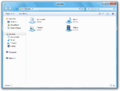
在 HKEY_CURRENT_USER 和 HKEY_LOCAL_MACHINE 根键下,将 SOFTWARE\Microsoft\Windows\CurrentVersion\Explorer}} 中的 RPEnabled 值设置为 0 将禁用所有 Metro 功能,对此版本有效地“去 redpill 化”,并启用类似早期泄露的 Windows 8 版本以及延伸到 Windows 7 的桌面体验,需在完全重启系统后生效。为满足此需求,还创建了特殊应用。
新增功能和更改
桌面 UI
控制面板
设备和打印机
设备和打印机控制面板小程序不再提示用户启用通过 Internet 下载额外的设备阶段元数据。
Windows Extended(Windows 扩展)主题
添加了新的“Windows Extended(Windows 扩展)”主题,以帮助展示多显示器支持功能。
其他
Metro UI
Charm
更新了“开始”菜单的 Charm 动画,当将鼠标悬停在相应的热角时,它会淡入显示,而非从底部滑出。连接 Charm 重命名为设备,并且在尝试投影到其他显示器时,不再提示用户缺少兼容的发送应用。
“开始”屏幕
更新了默认的“开始”屏幕布局,不再包括常用的 Win32 桌面应用,现在默认固定的磁贴仅包括 Internet Explorer、Windows 应用商店、Windows 资源管理器和沉浸式控制面板应用,以及“切换到桌面”磁贴。
“开始”屏幕上的语义视图模式已被暂时禁用。
预装应用
多个预装系统应用,即 Internet Explorer、沉浸式控制面板、远程桌面连接、Windows 应用商店,其固定在“开始”屏幕上的磁贴被重新设计,并分别重新着色为浅蓝色、黄色和橙色。
在针对平板优化的 Internet Explorer 10 用户界面中,右键菜单已调整大小以适应所有可能的选项。
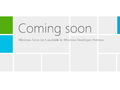
在此版本中,Windows 应用商店被强制禁用,原因是其底层平台尚未准备好供公众使用。启动时会向用户显示“coming soon(即将推出)”的消息,尽管与 Windows 应用商店相关的所有代码仍存在于应用中。
启动界面的重新设计
重新设计的 Windows 启动管理器和 Windows 恢复环境用户界面现在默认已启用。此功能由启动配置数据 (BCD) 操作系统加载程序布尔变量 BCDE_OSLOADER_TYPE_BOOT_MENU_POLICY(BOOTMENUPOLICY; 0x250000c2)控制,此变量控制新 Windows 8 启动界面行为的启用。在此版本中,其值设置为 1(标准)。
通过将上述变量的值设置为 0(Legacy),可以关闭这些重新设计。
其他
针对 Metro 对话框模态实施了尺寸调整,以便更多内容能够正确显示,且在桌面视图中绘制时,对话框模态中的文本现在能够正确着色。
其他
- 已将 DigiCert Assured ID Root CA 和 GTE CyberTrust Global Root 的第三方受信任根证书添加到系统中。
- 更新了公共 Developer Preview 的最终用户许可协议。
Bug
安装
- 出于预览版本的目的,此版本的升级默认被禁用;此行为由
sources 目录中存在的空白 noupgrade.txt 文本文档控制。可以通过从安装介质中移除此二进制文件来重新启用。
兼容性
- 若要在 VMware 上运行此版本,兼容性必须设置为 8.x 或 9.x 版本,否则将发生错误检查。
桌面窗口管理器
OOBE 背景
与自 8027 以来的任何先前版本一样,此版本的 Windows 7 OOBE 背景被扭曲,图像在左侧被压缩成单色,而右侧留有黑色空间。此 bug 从未被修复,原因是随着 Redpill 功能被整合到 Windows 主代码库中,在 Build 8128 中旧版 OOBE 被移除了。
电子邮件
此版本的初始发布附带了一封“Install Fair(安装公平)”电子邮件,发送给参与 Microsoft Connect 计划的合作伙伴。
Help the Windows team prepare for beta by signing up for the Windows Developer Preview Install Fair
Sign-up to be a part of our virtual install fair. We’d really appreciate your help and for two days only – Saturday, October 8th and Sunday, October 9th – Microsoft will have engineers available to chat with you live about your installation experience. From determining if your PC can run the Windows Developer Preview and downloading all the way through your installation, engineers will be available to answer your questions and troubleshoot any errors you may encounter.
How does the virtual install fair work?
On the day of the event, log-on to our website from the computer on which you intend to install the Windows Developer Preview and follow our instructions. During the process Windows engineers will be available to chat with you in real-time and answer your questions. Or should you encounter any issues, we will be available to debug and troubleshoot. Or if you simply want to provide us feedback about what you like and dislike during the installation, we’re here for that as well.
Accept the Invitation
or copy the following URL and paste it into your Web browser's address bar: [clipped]
A couple of things to keep in mind when deciding to participate.
Remember, the Windows Developer Preview is just that – a preview, pre-beta release. If you are not comfortable with installing Windows and working with pre-release software than this event is not for you. The Windows Developer Preview is not intended to be installed in a production environment and if you intend to install it on your primary PC please keep in mind that there is no way to uninstall it. In order to go back to a previous version of Windows you must have restore or installation media.
Once you are OK with that, you’ll need to make sure that your system meets the minimum requirements. The Windows Developer Preview works great on the same hardware that powers Windows Vista and Windows 7, including:
- 1 gigahertz (GHz) or faster 32-bit (x86) or 64-bit (x64) processor
- 1 gigabyte (GB) RAM (32-bit) or 2 GB RAM (64-bit)
- 16 GB available hard disk space (32-bit) or 20 GB (64-bit)
- DirectX 9 graphics device with WDDM 1.0 or higher driver
- Taking advantage of touch input requires a screen that supports multi-touch
- To run Metro style Apps, you need a screen resolution of 1024 X 768 or greater
If you are already registered on Connect, another option to accept or decline your invitation is to access My Dashboard and click on My Pending Actions in the upper right corner. Accept and decline links will be available in the display.
If you do not see My Pending Actions, then you are not signing in with the Windows Live ID associated to the Connect account which has this invitation.
After accepting the invitation you may be asked to take a survey or submit further information. In some cases your status could be set to Pending in which case the product team will contact you only if you are chosen for participation. To report a problem, visit the help page.
If you are not interested in participating you need to take no action.
Thank you for your interest, and we look forward to hearing from you!
Sincerely,
Program Administrator
图库
英语变体
Windows 安装程序
-

安装程序
-
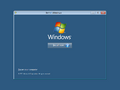
自动运行
-

初始化
-
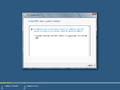
人工升级模块
-
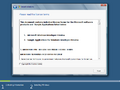
最终用户许可协议
-
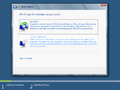
安装类型
-
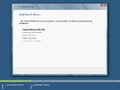
正在安装
-
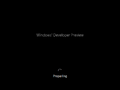
硬件检测(安装的第二阶段)


全新安装体验
-
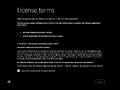
最终用户许可协议
-

初始载入动画
-
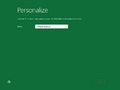
个性化
-

正在完成设置


用户界面
-
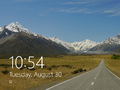
锁定屏幕
-
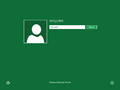
登录屏幕
-
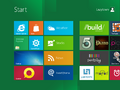
“开始”屏幕
-

Charm 菜单打开的桌面
-
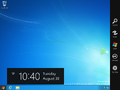
Charm 栏打开的桌面
-
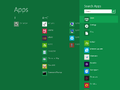
搜索 Charm
-
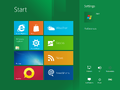
设置 Charm
-
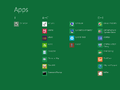
应用列表
-

-
-
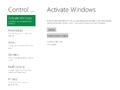
-
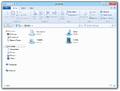
Windows 资源管理器
-
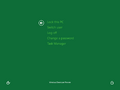
安全选项
-
早期系统崩溃
-
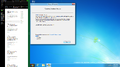
应用贴靠
-
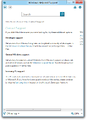
显示不提供任何保证说明的帮助与支持中心
-
winver 显示扩展的时间炸弹


主题


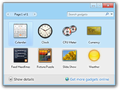
DWM 故障
-
-
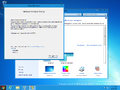
显示玻璃特效的 Aero Lite 主题


Redpill 禁用后
-
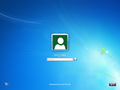
登录屏幕
-

桌面
-
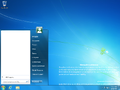
“开始”菜单
-
-
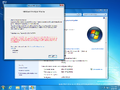
winver 和系统属性
-

安全选项
-
winver 显示扩展的时间炸弹


全新安装体验
-

计算机名称
-
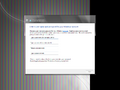
用户名和密码
-
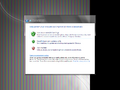
自动更新
-
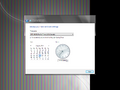
日期和时间


简体中文变体
-
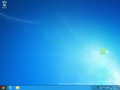
桌面

其他
-
启动屏幕


引用资料
- ↑ Microsoft. Microsoft Reimagines Windows, Presents Windows 8 Developer Preview(Microsoft 重新构想 Windows,发布 Windows 8 Developer Preview), Microsoft News. 2011 年 9 月 13 日.
- ↑ Steven Sinofsky. Welcome to Windows 8 – The Developer Preview(欢迎使用 Windows 8——开发者预览版), Building Windows 8. 2011 年 9 月 13 日.
- ↑ [图+下载] Windows 8 开发者预览版中文包[更新 x86/x64], cnBeta. 2011 年 9 月 20 日. 存档来自 2011 年 9 月 23 日的原件.