Windows 8 Build 8002.0.fbl_grfx_dev1.110511-1700
| Windows 8 的版本 | |
Default desktop | |
Desktop with enabled Redpill | |
| 操作系统系列 | Windows NT 系列 |
|---|---|
| NT 版本 | Windows NT 6.2 |
| 内部版本号 | 8002 |
| 修订版本号 | 0 |
| 体系结构 | x64 |
| 内部版本实验室 | fbl_grfx_dev1 |
| 编译日期 | 2011 年 5 月 11 日 |
| 有效期 | |
| 时间炸弹 | 2012 年 3 月 15 日 (+309 天) |
| 关于对话框 | |
Windows 8 build 8002 (fbl_grfx_dev1) is a Milestone 3 build of Windows 8, which was uploaded on 25 December 2021.
SKU 版本和密钥
| SKU 版本 | 密钥 |
|---|---|
| Home Basic | YGFVB-QTFXQ-3H233-PTWTJ-YRYRV |
| Home Premium | RHPQ2-RMFJH-74XYM-BH4JX-XM76F |
| Professional | HYF8J-CVRMY-CM74G-RPHKF-PW487 |
| Ultimate | D4F6K-QK3RD-TMVMJ-BBMRX-3MBMV |
| Beta (Prerelease) | VKKC6-NQQQH-JW3QX-XRVKX-KJJK9 |
New features and changes
Setup
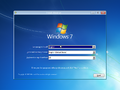
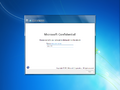
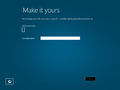
- The setup interface is mostly similar to previous releases of Windows 8. However, there is a white box behind the computer name text, which now reveals the text being inputted. The color slider has been updated slightly as well, albeit it's still hidden.
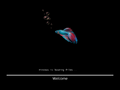
- When starting setup, the initialization status are now displayed on the bottom instead of the center.
- The second stage is now identical to the boot screen. However, it is similar to build 7973's boot screen.
- There are two changes to the modern setup client (
installprep.exe): - The background color is now blue with gradients to a more lighter blue on the top and bottom edges.
- The installation stage is now in full screen.
Power applet
The charms bar's power applet is now functional, allowing the user to shutdown or restart the computer.
Choose Default Program dialog
The dialog for choosing the default program for a file has been redesigned to use the new Metro style. It now appears much more simplified, as only programs which are designed to execute the specified file are listed. Other prefedined programs and options for searching manually on the system or on the web for a program appear after selecting the "See all..." option. The new dialog, however, appears to be locked behind the Redpill mechanism, as no action happens in the unredpilled state if the context menu for the file shows the "Open with..." option on the first place and bolded. The old user interface continues to be accessible if said option is a menu with the "Choose default program..." option in it. In addition, gibberish appears in place of the field where the file extension in question should usually stay. The latter issue will become resolved later in the next build.
System repairing utilities
BootIM has been introduced in this build, which has been made to replace the old user interface of Windows Recovery Environment found in Windows 7, mostly consisting of checking the system for any issues or being used as a boot menu. It was made for either dualbooting or system repair, however it isn't finished in this build. There are two ways of running BootIM, assuming that the operating system is redpilled:
F8 on boot
Before doing this, a command prompt with administrator permissions must be opened. Once doing so, paste in the following text: bcdedit /set {default} custom:250000c2 1. Once done, reboot the system and instantly press F8 before the boot screen shows up. Once done, hit "Repair your computer". This should take the user to the new WinRE, however the resolution will be set to 800x600, which isn't suitable due to the fact that the new WinRE requires a lot of space.
Simply typing BootIM in the Run utility
Basically what the sub-title suggests. Press ⊞ Win+R (or launch Run from the Start screen), type bootim, and launch the application.
Reset utility
The reset utility has been entirely revamped and now uses the Metro design. As with previous builds, it requires the Windows 8 installation media. It also gives information with what will be kept and what will not be kept, rather than supplying options for what to keep.
Bugs and quirks
Installation on VMware
To install or run this build in VMware Workstation, the hardware compatibility version must be set to versions 8.x/9.x; otherwise, a bugcheck will occur.
Installation on VirtualBox
This build cannot be installed or run on newer versions of VirtualBox. In order to run it, the user must go to Settings > System > Processor, and then set the Paravirtualization Interface from "Default" to "Legacy", as by default it uses Hyper-V paravirtualization.
Start screen
- Similar to build 7985, it is possible to uninstall the desktop from the Start screen.
- Just like the previous build, Desktop is referred to as
Desktop.lnkon the Start screen. - The Start screen may appear to be empty at first. Logging out and logging back in should fix the issue.
- The tiles on the Start screen tend to flash upon interaction and may not launch properly upon clicking.
App tiles
Some app names (such as Control Panel, Chess Titans, Defragment and Optimize Drives, etc) may be truncated by normal sized tiles.
Aero Glass in Starter and Home Basic
This build automatically enables Aero Glass transparency after installing the Starter and Home Basic SKUs, despite product policies limiting usage of such effects. Changing the current visual style over to a different one (e.g.: Windows Basic) will disable glass effects.
General
If using VMware Workstation versions 15.x or above changes in build 7878, attempting to restart or shutdown in this build will cause a softlock. To fix this, use the Power menu from the VM section.
Upgrade
After the preparation phase of the upgrade, Windows may encounter a bugcheck with the error code SYSTEM_THREAD_EXCEPTION_NOT_HANDLED caused by winhv.sys. To bypass this, boot into Safe Mode and delete or rename the file located at C:\Windows\System32\Drivers.
Miscellaneous
- The boot screen has rendering issues when starting setup, showing both the loading files and boot screen at once.
- Windows Explorer is relatively unstable and is prone to crashing.
- If running certain immersive applications on the desktop, a transitioning animation will play for whatever reason, albeit it won't actually transition between applications.
- When attempting to apply an image as a wallpaper, it will not work, despite the selected image as wallpaper showing up in the Unsaved theme.
Gallery
Setup
-
安装启动屏幕
-
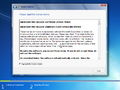
许可协议
-
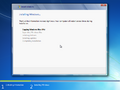
安装
-
Immersive OOBE
Interface
-
启动屏幕
-
winverwith redpilled Aero theme -
BootIM
-
Lock Screen
-
Login Screen
-
Empty start screen
-
Start Screen
-
Newly designed default program dialog