Windows Server 2012 Build 7788.0.fbl_core1_hyp_dev.100727-1700
| Windows Server 2012 的版本 | |
 | |
| 操作系统系列 | Windows NT 系列 |
|---|---|
| NT 版本 | Windows NT 6.1 |
| 内部版本号 | 7788 |
| 修订版本号 | 0 |
| 体系结构 | x64 |
| 内部版本实验室 | fbl_core1_hyp_dev |
| 编译日期 | 2010 年 7 月 27 日 |
| 有效期 | |
| 时间炸弹 | 2010 年 10 月 1 日 (+66 天) |
| 关于对话框 | |
 | |
Windows Server 2012 build 7788 (fbl_core1_hyp_dev) is the earliest available Milestone 1 build of Windows Server 2012, which was uploaded on 24 June 2022. It is the earliest available server build to include the Redpill feature locking mechanism and a confidential build warning in the watermark.
Due to its earliness, this build identifies itself as its predecessor in many areas and still bears the 6.1 kernel version.
SKU 版本和密钥
| Key | 密钥 |
|---|---|
| Enterprise / EnterpriseCore | 7P8GH-FV2FF-8FDCR-YK49D-D7P97 |
| Datacenter / Datacenter Core (edition upgrade only) | 7X29B-RDCR7-J6R29-K27FF-H9CR9 |
Redpill
This build is one of the earliest to contain the Redpill feature locking mechanism, which hides most features found in builds of Windows 8 (and its server counterpart). Most Redpill features that are present in this build do not possess any real functionality or do not properly function.
New features and changes
ISO mounting
Built-in support for mounting ISO images to a virtual CD-ROM drive has been added along with its dedicated context menu item.
-
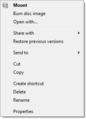
The context menu when right clicking on an ISO image file

Language profiles
The ability to install, switch and manage language profiles has been added into the Control Panel. This feature allows for keyboard layouts, language packs, and the like to be configured and installed in a dedicated Control Panel page.
Due to this feature being in very early development, its user interface is rather primitive and most functions do not work.
-
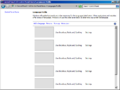
The language profiles Control Panel applet in question
-
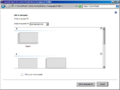
Ditto, with the "Add a language" subcategory open


Hybrid Boot
Hybrid boot, an early implementation of fast startup seen in the final release of Windows 8 and its server counterpart, has been introduced in this build, owing to the fact that this build originates from a kernel branch. Hybrid boot makes use of the Hibernation feature to save the base operating system state to memory and subsequently restore it upon startup, allowing for fast boot times. It requires a UEFI system in order to function.
User tile
A new user tile has been added to the taskbar next to the Show Desktop button, although its functionality is not present, and thus only shows the user account's profile picture and the user account name when hovered over. In addition to this, the "Change your account picture" link seen in the sidebar of the Personalization Control Panel applet has been renamed to "Change your look". This link is supposedly used to configure the user tile in the taskbar, although it's functionality is not present and it simply redirects the user to the account picture page.
-
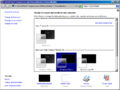
Renamed "Change your look" sidebar link

Internet Explorer 9
This build brings major overhauls to the Internet Explorer browser compared to Server 2012 build 7700.
Design changes
Most references that display branding information for Internet Explorer 8 have been updated to feature branding for Internet Explorer 9 and a near-final (darker and less wide than the final) version of the Internet Explorer 9 logo.
The new tab interface (accessed by typing in about:tabs in the address bar, as opening a new tab in server builds leaves you with a blank page) has been updated to resemble a similar appearance found in the final release. The new tab page now prioritizes the users most used sites with various elements from the previous design being moved to the bottom of the page. The "Reopen last browsing session feature" has been renamed to simply just "Reopen last session" and said feature having been moved down right next to the "Reopen closed tabs" button. The users most popular sites are now displayed as 10 individual squares with a meter indicating how frequent the user has visited said site. An additional "Hide sites" button has been added in the top right corner, which hides the aforementioned sites. The "Open an InPrivate browsing window" has been simply renamed to "InPrivate" and has been moved to the bottom right corner of the screen.
The Developer Tools have been renamed to the "F12 developer tools" and now open up in the same Internet Explorer window as the webpage by default instead of in a seperate popup. Enabling the seperate window function will show that the titlebar no longer mentions "Developer Tools", and instead simply "F12".
The "Settings" word in "Compatibility View Settings" is now lowercase, the Quick Tabs feature has been removed, the copyright year seen in About has been updated from 2009 to 2010, and .svg files can now be rendered in the browser. A "Send feedback" option has been added to the "?" menu as well, although pressing it does not perform any action.
-
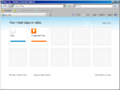
A preliminary version of Internet Explorer 9 seen in this build
-
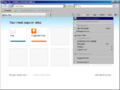
The "Tools" dropdown menu on the Internet Explorer toolbar
-
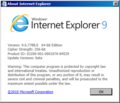
Ditto, about dialog


A brand new method for downloading files has also been added, when downloading a file, a popup embedded into the browser UI appears at the bottom of the Internet Explorer window prompting the user to either save, cancel, or view downloads, instead of previously showing 2 separate popups with one telling the user whether they want to run or save the file, and the second popup showing the file's download progress. The save button in the new embedded popup now has a dropdown menu right next to the button which has options such as Save, Save as, and Save and run.
After the Save option is pressed, the dialog box asking for the directory that the file should be saved in will no longer appear, and the file will now instead always save in the user-chosen directory (by default being the Downloads folder). The file's download progress will then be shown in place of the previous dialog, albeit with the Save button now being Pause. Once the file is downloaded, the user can then choose to run it, open the folder that the file is located in, or view the rest of their downloads.
Continuing on the previous paragraph, an additional View Downloads popup is now present as well. Opening it will show a user interface that contains a "View and track your downloads" title, a basic Options menu to allow the user to choose their default download location and whether they should be notified when a download is complete, a search downloads function, the name and location of the user’s downloaded files, the actions that can be performed on the files at the moment, a "Learn more about downloading files" link, and a Clear list button to clear the downloads list. The link to this popup has additionally been added to the Tools dropdown menu as "View downloads", and can be quick launched by pressing Ctrl+J.
Hidden user interface
To enable the new user interface and view changes, see Windows 8 Build 7776#Findings#Internet Explorer 9.
-
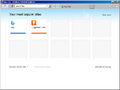
Internet Explorer with its early, hidden new user interface

Visual styles
Windows Aero
This build reintroduces centered title bar text, which was last featured in Windows Longhorn client builds 4005 (on all types of windows with Plex theme), 4015 (on maximized windows with Plex theme) and 4020 (on all types of windows with Glass frames enabled). However, if DWM is disabled, the title bar text is still left-aligned on maximized windows. Title bar text and caption buttons were also made larger by default.
Since the title bar text alignment is in the center between the icon and the minimize button instead of the center of the whole title bar, the title bar text may not appear to be fully centered and may be offset.
Aero Lite
This is the earliest available Windows build to feature the Aero Lite visual style, which is almost identical to the Windows Aero visual style at this point in development.
Watermark
A confidential watermark advising Microsoft employees to not share this build has been added, replacing the confidential text seen in the default wallpaper of earlier builds of Server 2012's client counterpart. Alongside this, the default wallpaper when enabling the Aero theme if the Desktop Experience feature is installed has been changed from the Windows Server 2008 desktop background to a simple blue gradient with a green tint at the lower right, with a message at the top advising Microsoft employees not to leak the contents of the build.
PDF Reader
A basic PDF document reader has been implemented in this build. It can be opened by running PDFReader.exe, optionally passing a path to a PDF file as the argument to open it.
-
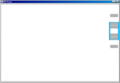
The PDF Viewer viewing the contents of a blank PDF file.

File copy dialog
This build contains an early version of the redesigned File Copy dialog, although it's disabled by default. To enable it, merge the following registry key:
[HKCR\CLSID\{3f97e701-2fad-40b5-90fc-77ca1a723a3a}]
"AppID"="{8F09011C-9A2A-4BBD-A04F-FF1C635DBCA3}"
-
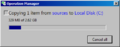
New copy dialog
-
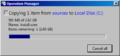
Ditto, expanded


Hyper-V
Paravirtualized PCI buses (VSP, VSC, and PCIP stub) to facilitate SR-IOV networking are now supported by the Hyper-V hypervisor. A dedicated Windows boot application (hvloader.exe/hvloader.efi) now initializes the hypervisor prior to the kernel load sequence.
The Paravirtualized USB Bus from Windows Virtual PC is no longer supported.
VBE 2.0 bugcheck
The bugcheck screen has been updated to support version 2 of the VESA BIOS Extensions specification. The system must crash during boot in order for the new version of the crash screen to appear.
Miscellaneous
- A new command line tool to register CIM (Common Information Model) providers to expose management data and functionality to Windows Management Infrastructure (WMI) clients (
Register-CimProvider.exe) has been added inside of the System32 directory. The fileRegister-CimProvider2.exeis also present, although its use case is seemingly unknown as running it does not output anything when running it inside of a Command Prompt.
-
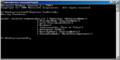
Register-CimProvider's output

- The Windows Classic color scheme from Windows 98 is now used as the default visual style.
- Changed the default desktop background color again to the one used in Windows Server 2008.
Redpill-specific
Multi-monitor taskbar
The taskbar has been updated to support usage across multiple monitors. Taskbars that are displayed on devices other than the primary monitor do not display a Start button, but will display pinned or running application icons.
Bugs and quirks
This build is fairly buggy due to a lot of reverse integration happening around the time of its compile.
Installation
The background seen in the Windows Preinstallation Environment is absent in this build.
Hardware compatibility
To install or run this build in VMware Workstation 16 or newer, the hardware compatibility version must be set to versions 11.x or lower since it hangs on the boot screen when set to 14.x and later versions.
General
- This build includes a non-functional xHCI driver and will not boot if USB 3.0 is enabled. Disabling USB 3.0 from the VM configuration (or through the physical machine's BIOS/UEFI firmware) will allow the build to boot normally.
- The WIM has logs and remnants indicating that when the WIM was created, the pseudolocalized language pack was installed (at 04:06:29 for index 1), then removed (at 04:21:33), then the English language pack was installed (at 05:04:31).
- A triple fault occurs during boot in VirtualBox unless paravirtualization is disabled.
- The default user account creation UI (
nusrmgr.cpl) does not work in this build. Either the net user command or the Local Users or Groups MMC snap-in (lusrmgr.msc) must be used to create new accounts. - The User tile does nothing when clicked.
- Enabling Hyper-V inside a VM with nested virtualization enabled will result in a triple fault.
- If the Aero theme is applied, the Windows Classic theme does not function anymore.
Redpill
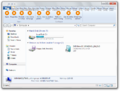
- The Ribbon shows all possible options at all times.
- The Start screen will not render the tiles unless the period-correct drivers and a standard user account are used. As of 2025, nobody has got it to render.
- The Start screen shows up as an Explorer window. It can only be closed by hitting Alt+F4, although the start screen cannot be brought up again with the ⊞ Win key.
Multi-monitor taskbar
- Unlike client build 7779, only the first two monitors will show the taskbar.
- Changing the screen resolution of the second monitor will cause the taskbar appearing as a large white line and the wallpaper will not be correctly resized. Restarting
explorer.exewill fix these issues. - The Metro downspace will only be displayed on the main monitor, with additional monitors showing the ImmersiveBackgroundWindow fallback.
- After a program is closed, the program's icon will still appear on the second monitor's taskbar unless a new program is dragged to the second monitor.
Gallery
Setup
-
安装启动屏幕
-
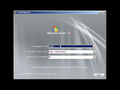
Autorun
-
Ditto.
-
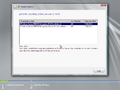
SKU Selection
-
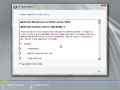
许可协议
-
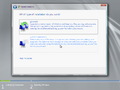
Installation type
-
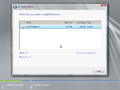
Disk partitioning
-
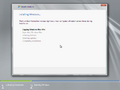
Installing Windows
-
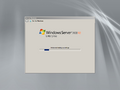
Finalizing settings


Interface


Redpill-specific
-
-

-
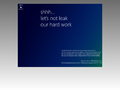
Metro downspace
-
ImmersiveBackgroundWindow fallback
-
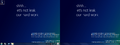
Multi-monitor taskbar


